In this tutorial
- 0:00One screen, a car's whole story
- 0:15Open a vehicle record and read the Summary
- 0:30The status button: Checkout, Check In, Return to Service
- 0:41Rental History, General, Custom Fields, Keys, Equipment and Notes
- 1:00Documents: renew an expired registration
- 1:29Finance and Change History
Step by step
- 1On Vehicle Fleet, click any unit to open its record.
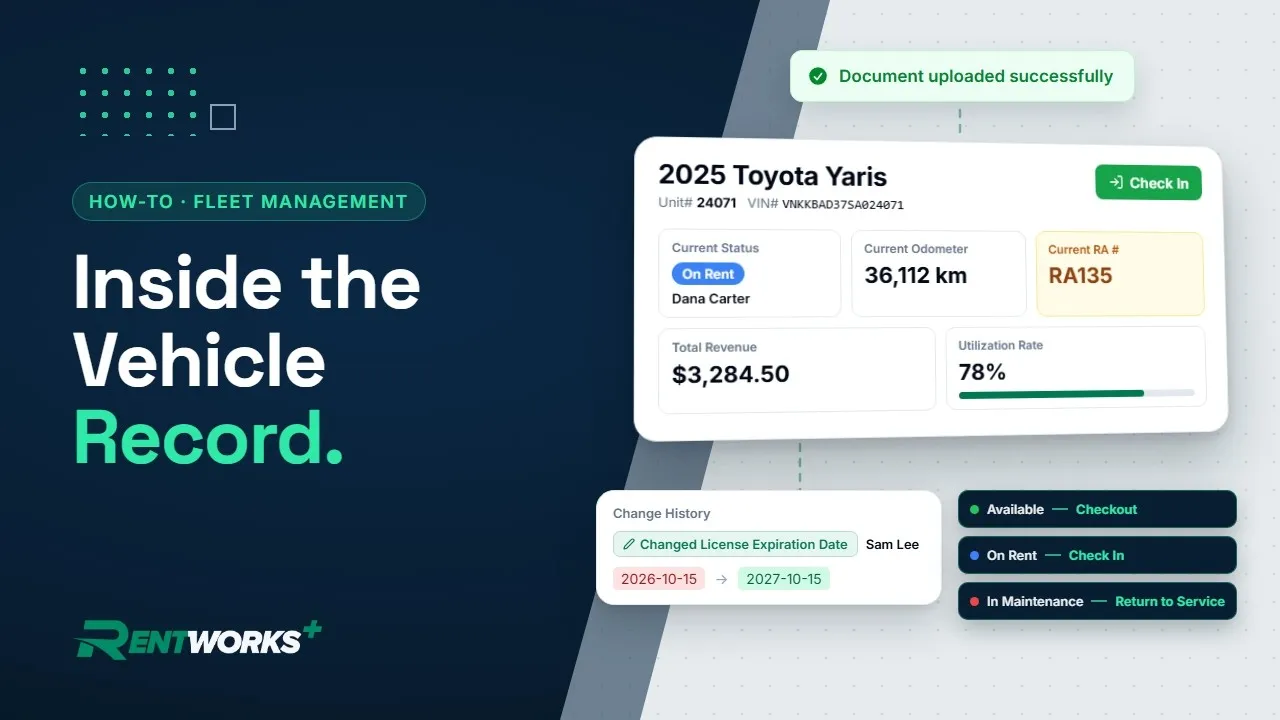
- 2Read the Summary: the car's current status, location, odometer and rental agreement, then Total Revenue and Utilization Rate to see how hard it works.
- 3Check the main button in the header. It follows the car's status, for example Checkout when the car is available, Check In when it's on rent and Return to Service when it's in maintenance.
- 4Scroll down to Rental History to see every reservation, rental agreement and non-revenue ticket the car has had in one list.
- 5Open the General tab for identity, license, key codes and colors, and the Custom Fields tab for your own fields. Keys, Equipment and Notes sit in the tabs below.
- 6Switch on Show vehicles with expired documents on Vehicle Fleet to list the cars with a red Doc Expired badge. Open one and go to its Documents tab to see what's Valid, Expiring Soon and Expired.
- 7Click Upload Document and drop in the renewed registration. RentWorks Plus reads the plate, state and expiry off it and flags any value that differs from the record.
- 8Tick Update the record with the document’s values, then click Upload Document.
- 9On the Finance tab, follow the car's money from purchase and financing to depreciation, valuations and sale.
- 10Open the History tab. Change History lists every change with who made it and when, and your registration update sits at the top.
Go deeper: Fleet management · Inventory management · Reporting and analytics
Video transcript
Hey there, and welcome back to Fleet Management in RentWorks Plus! You've added your cars, so now let's look inside one. One screen holds a car's whole story: its status, its performance, its specs, its paperwork, and its money.
On Vehicle Fleet, click any unit, and its record opens.
The Summary shows where the car stands right now: its current status, location, odometer, and the rental agreement it's out on. Total revenue and the utilization rate show how hard it's working.
The main button up top follows the car's status. An available car shows Checkout. On rent, it's Check In. And one that's in maintenance shows Return to Service.
Scroll down to Rental History. Every reservation, rental agreement, and non-revenue ticket this car has had sits in one list.
The General tab holds the specs: identity, license, key codes, and colors. Custom fields get a tab of their own. And down below, Keys, Equipment, and Notes keep the rest close at hand.
Now, paperwork. See that red Doc Expired badge? This car's registration has lapsed. The Documents tab counts what's valid, expiring soon, and expired. Click Upload Document and drop in the new registration. RentWorks reads the plate, state, and expiry right off it, and flags what's changed. Upload it, and the record's up to date. And if a car has to go out first, managers can be given permission to override expired documents.
The Finance tab follows the money: from purchase and financing to depreciation, valuations, and the sale.
And the History tab logs every change, with who made it and when. One record, the car's whole story.
The Fleet Management series
-
01
-
02
-
03
-
04