In this tutorial
- 0:00Keep every car's live state accurate
- 0:16Fleet Management: a card for every unit
- 0:25Status Modify: status, location, fuel and odometer
- 0:36List view, then bulk updates on Vehicle Fleet
- 0:48Custom statuses and the Status History tab
- 1:04Move a car with a Non-Revenue ticket
- 1:21Count the lot and read the Discrepancy Report
Step by step
- 1Open Counter, then Fleet Management. Each unit has its own card showing status, location, fuel and odometer, with buttons for the next action.
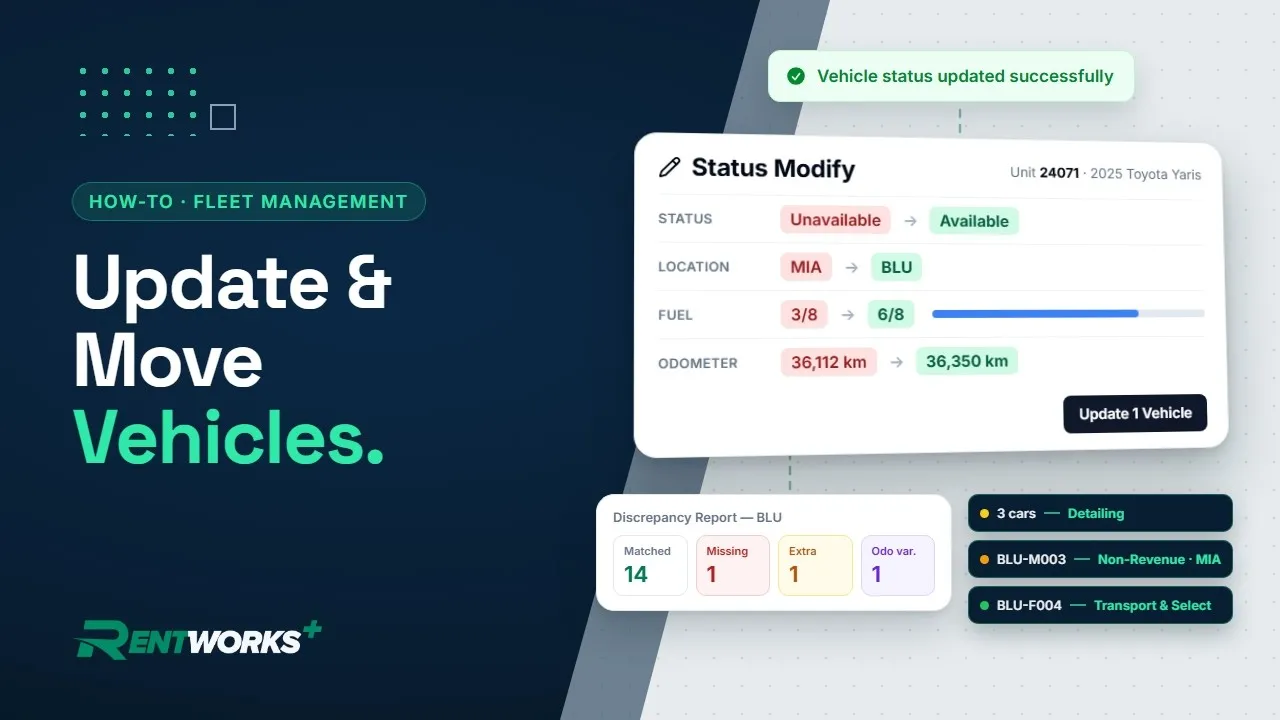
- 2Click Status Modify on a car's card. Pick the new status, set the location, slide the fuel level to the right eighth and enter the odometer, then click Update 1 Vehicle.
- 3To see the units as rows instead of cards, click List view.
- 4To change several cars at once, open Vehicle Fleet from the sidebar, tick the cars, click Status Modify, set the new values and update them together.
- 5In Settings, under Business Setup, open Statuses Management and click Add Status to create your own status, such as Detailing. Each custom status gets its own tile on Vehicle Fleet.
- 6Check the Status History tab on the vehicle record to see when each status changed, who changed it, why and where.
- 7To move a car with no renter, such as a shuttle run, a transfer or an employee trip, click Open Non-Revenue on its card. Pick the driver and return location, check the odometer and fuel going out, and open the ticket. When the car comes back, click Close Non-Revenue on the same card (Close NR in list view).
- 8For a physical count, open Counter, then Vehicle Inventory, and pick your location. Search or scan each unit on the lot to record it in the Inventory Session.
- 9If a car belongs to another location, RentWorks Plus opens the Transport Vehicle dialog. Click Transport & Select to move it to your location.
- 10Click Submit Inventory and confirm. The Discrepancy Report lists missing cars, extra cars and any odometer reading that's off.
Go deeper: Fleet management · Inventory management · Counter operations
Video transcript
Hey there, and welcome back to Fleet Management in RentWorks Plus! Cars don't sit still. They get rented, refueled, moved around, and parked in the wrong row. So let's keep every car's live state accurate, and let the system flag anything out of place.
Open Counter, then Fleet Management. Every unit gets its own card: status, location, fuel, and odometer, with buttons for what you can do next.
Click Status Modify. Pick the new status, set the location, slide the fuel to the right eighth, and enter the odometer. Click Update 1 Vehicle, and the card's up to date.
Prefer a list? One click switches Fleet Management to list view. Got a whole row to change? Open Vehicle Fleet from the sidebar, tick the cars you want, click Status Modify, and update them all at once.
And the statuses are yours to define. Add your own in Statuses Management, like Detailing, and it gets a tile of its own on Vehicle Fleet.
Every change is kept. The Status History tab on the vehicle record shows when the status changed, who changed it, why, and where.
Moving a car with no renter? A shuttle run, a transfer, or an employee trip? Click Open Non-Revenue on its card. Pick the driver and the return location, check the odometer and fuel going out, and open the ticket. When it's back, Close NR on the same card checks it in.
Now, the physical count. Open Vehicle Inventory and pick your location. Search or scan each unit on the lot, and it's recorded to the session. Found one that belongs somewhere else? RentWorks asks, and Transport & Select moves it here. Submit the inventory, and the Discrepancy Report lists what's missing, what's extra, and any odometer that's off. The system matches the lot.
The Fleet Management series
-
01
-
02
-
03
-
04