In this tutorial
- 0:00One record per car
- 0:17Open your fleet from the Dashboard
- 0:35Add a vehicle and scan the VIN
- 0:53Vehicle class, tank size, plate and save
- 1:04Duplicate a car or bulk import your fleet
- 1:26Coming Soon vehicles and Class Availability
Step by step
- 1On the Dashboard, click a row on the Fleet Status card to open your fleet filtered to that status.
- 2Check the tiles at the top for counts by status, such as available, on rent, in service and coming soon. Search by unit number, VIN or license plate, or filter by status.
- 3Click Add Vehicle and choose the Product. The Unit Number fills in from your fleet's number range, and you can change it.
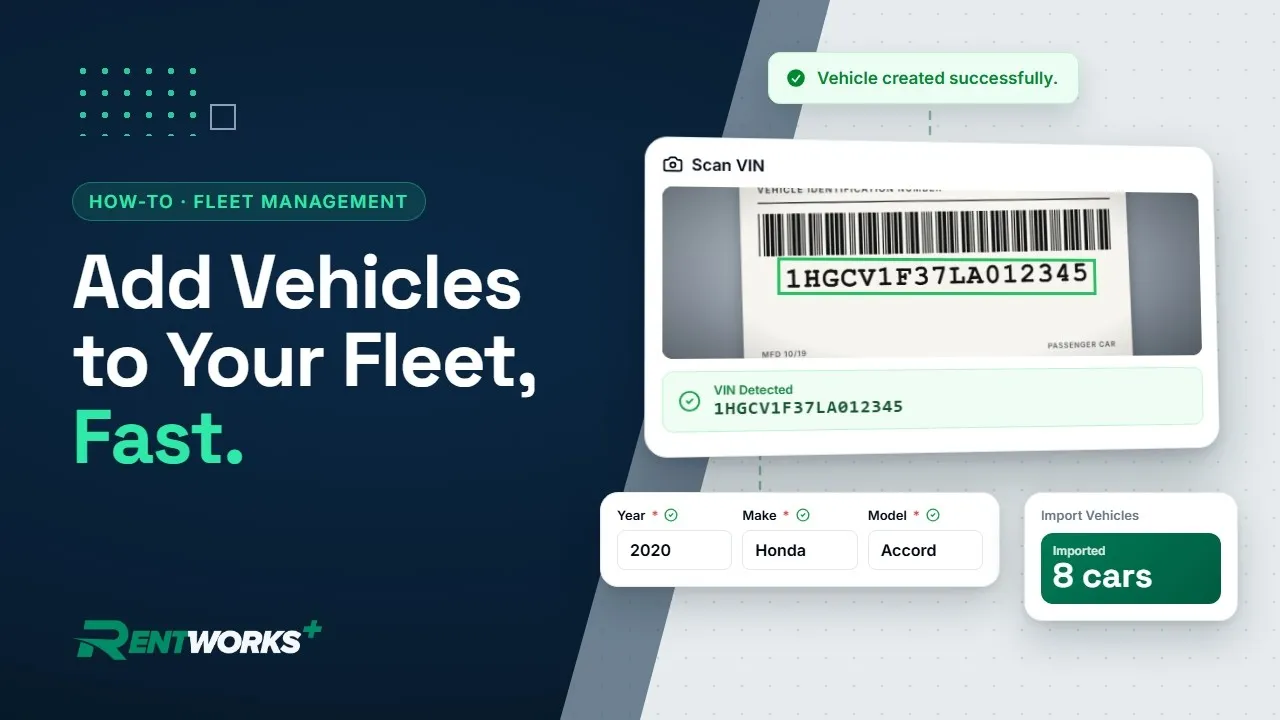
- 4Click Scan VIN, choose Take Photo and photograph the VIN plate, then click Use This VIN. Or type the VIN in. RentWorks Plus decodes it and fills in the year, make, model and fuel type.
- 5Pick the Vehicle Class, enter the Gas Tank Size, and add the license plate, state and expiration date.
- 6Click Save Vehicle to create the car and open its record.
- 7To add a look-alike of a car you already have, select that car in the list and click Duplicate Vehicle, then give the copy a new unit number, VIN and plate. Everything else carries over.
- 8To bring in a whole fleet, open Data, go to Import and choose Import Vehicles. Click Download Template, add one row per car, drop the file in and click Import Vehicles.
- 9For cars still on their way, set a future In-Service Date. RentWorks Plus marks them Coming Soon: they can take reservations but stay out of the rentable fleet until that date.
- 10Back on the Dashboard, check Class Availability, which now counts the new cars that are ready to rent.
Go deeper: Fleet management · Fleet managers · Inventory management
Video transcript
Hey there, and welcome to Fleet Management in RentWorks Plus! Every car in your fleet has one record, and everything links to it: rentals, inspections, maintenance, documents, photos, and finances. So let's start at the beginning: adding vehicles to your fleet.
Start on the Dashboard. The Fleet Status card counts every car by status. Click one, and you're straight into your fleet.
The tiles up top count your whole fleet: available, on rent, in service, and coming soon. Search by unit number, VIN, or license plate, or filter by status.
To add a car, click Add Vehicle. Choose the product, and the unit number fills in from your fleet's number range. You can always change it.
Now, the VIN. Click Scan VIN and take a photo of the VIN plate, or just type it in. RentWorks decodes it, and the year, make, and model fill in on their own.
Pick the vehicle class and enter the gas tank size; the fuel type came in with the VIN. Add the license plate, state, and expiry date, then click Save Vehicle. And there's your new car's record.
Adding a look-alike? Select it in your list and click Duplicate Vehicle. Everything copies over: you just give it a new unit number, VIN, and plate.
Got a whole fleet to bring in? Open Data, then Import Vehicles. Download the template, add one row per car, drop the file in, and click Import Vehicles. Your cars land in the list, ready to rent.
Cars still on their way? Give them a future In-Service Date, and they're set to Coming Soon. They can take reservations, but stay out of the rentable fleet until that day.
And every car you add counts straight into Class Availability on your Dashboard. One car or two hundred, your fleet, ready to rent.
The Fleet Management series
-
01
-
02
-
03
-
04