In this tutorial
- 0:00Opening the Reservation Planner
- 0:16How to read the timeline
- 0:30Navigate weeks and the Day, Month and Year views
- 0:40Filter by location, vehicle class and status
- 0:53Booking details and changing a rental's duration
- 1:10Find unassigned reservations and assign a car
- 1:26Smart Assign: auto-pick the best vehicle
- 1:39Bulk Assign a whole vehicle class
- 1:54Book a new reservation from the grid
Step by step
- 1Click Reservation Planner in the sidebar. It opens on today's date, filtered to your location.
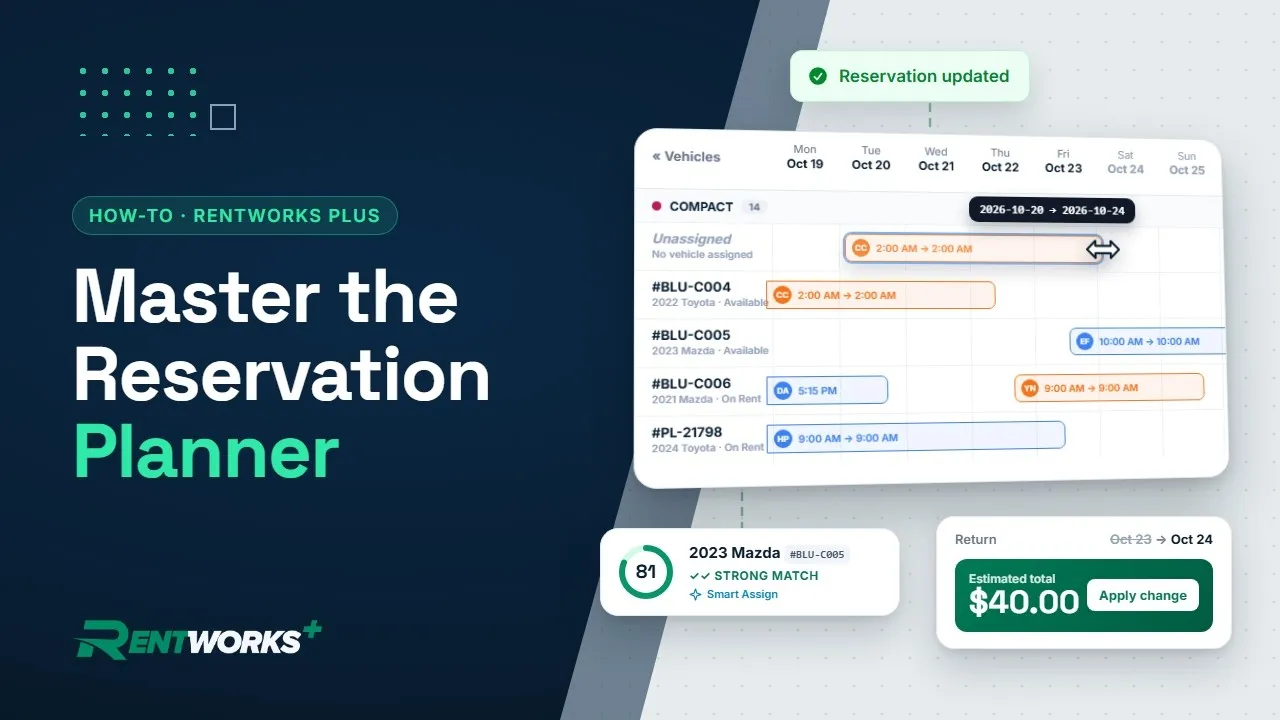
- 2Read the timeline: vehicles are grouped by class, one row per vehicle, with status on the left. Orange bars are reservations, blue bars are rental agreements, and the info button shows the icon legend.
- 3Use the arrows to move a week at a time, Today to come back, and switch between Day, Month and Year or a 24-hour clock.
- 4Filter by check-in or check-out location, vehicle class, unit number, vehicle state, reservation or agreement status, or a custom date range. One click clears every filter.
- 5Hover a booking for a summary, or double-click it for pickup, return, vehicle and notes.
- 6To change a rental's duration, drag the end of its bar to the new return time, check the new total, then click Apply change.
- 7Reservations without a car wait in the Unassigned tray at the top. Drag one onto a vehicle, or right-click and choose Move, the class, then the car. Anything that would double-book is flagged as a conflict.
- 8With the Smart Assign add-on, right-click and choose Smart Assign to pick the best available car. Why this score explains each factor.
- 9To place a whole class, click Bulk Assign, pick the class, set the dates and options, then click Assign vehicles. Safe matches save automatically; rate changes and manual picks wait for your review.
- 10To book, click an empty day on any car, or click New Reservation.
Go deeper: Reservation software · Fleet management
Video transcript
Well, hello there! Let's tour the Reservation Planner in RentWorks Plus. Every car and every booking, on one timeline.
To open it, click Reservation Planner in the sidebar. It starts on today's date, already filtered to your location.
So, how do you read it? Cars are grouped by class, and each row is one vehicle, with its status on the left. Every bar is a booking: orange for reservations, blue for rental agreements. Not sure what an icon means? Click the info button for the legend.
Use the arrows to move a week at a time, and Today brings you right back. Switch between Day, Month, and Year, or set the clock to 24-hour time.
Now, narrow it down. Filter by check-in or check-out location, vehicle class, unit number, vehicle state, or reservation and agreement status, or pick your own date range. One click clears them all.
Need the details? Hover over a booking for a quick summary, or double-click it for the pickup, the return, the vehicle, and any notes.
Need to adjust a reservation's duration on the fly? Just drag the end of its bar to the return time you want, check the new total, then click Apply change.
Reservations that still need a car wait in the Unassigned tray, up top. Click one, and the planner takes you right to it.
To give it a car, just drag the bar onto a vehicle. Or right-click, choose Move, pick the class, then the car. Anything that would double-book is flagged as a conflict.
Or let RentWorks choose for you. With our Smart Assign add-on, right-click and select Smart Assign. It picks the best available car for the booking, and in the booking details, Why this score breaks it down, factor by factor.
Got a whole class to place? Click Bulk Assign, then pick the class. Set the dates and your options, then click Assign vehicles. Safe matches are saved automatically, and anything that needs a rate change or a manual pick waits for your review.
Finally, to book something new, click an empty day on any car, or click New Reservation.
And that's the Reservation Planner! Every car, every booking, all planned, on one timeline.
The Core Rental Operations series
-
01
-
02
-
03
-
04