Skip to main content
AI Inspection from Self Inspection is now live in RentWorks Plus. Read the announcement
RentWorks Plus Bluebird Auto Rental Systems Book a Demo
Core Rental Operations · Part 2 of 4 · 1:48

How to create a car rental reservation in 15 clicks

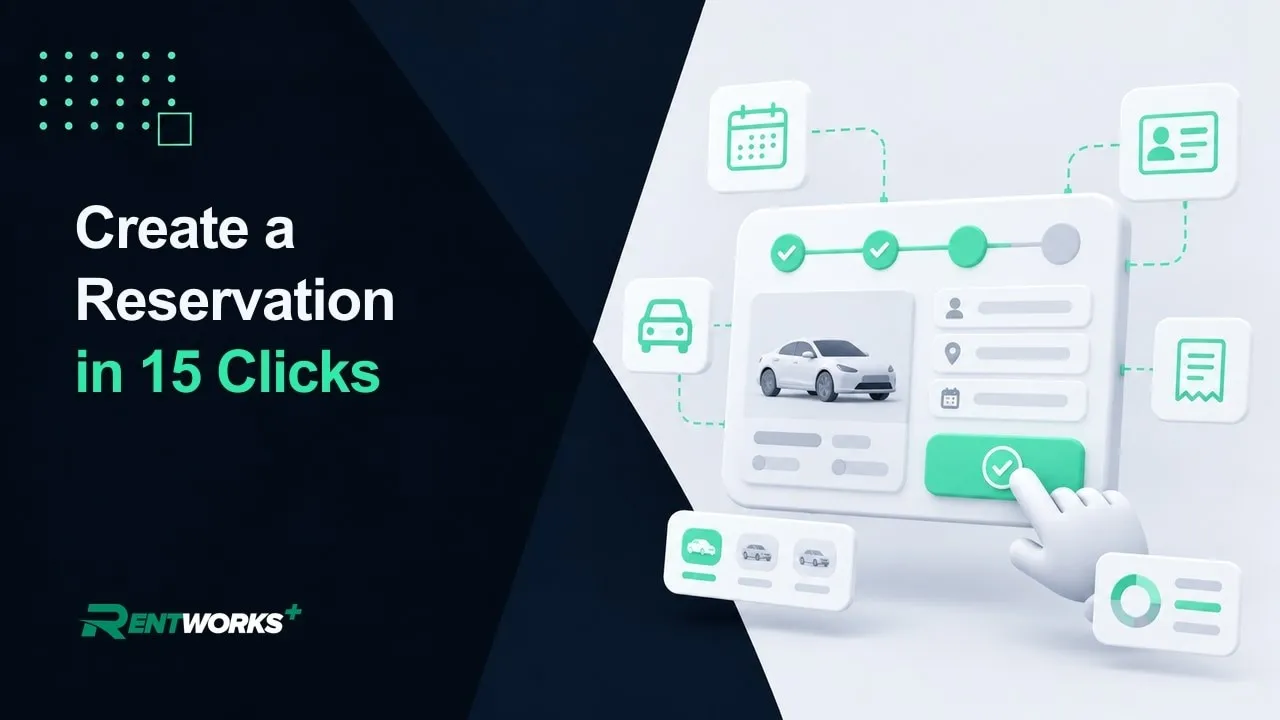
From pickup date to saved record, every click of a new reservation in RentWorks Plus: vehicle class, renter, rate plan and add-ons, with the charges adding up live as you go.

Evaluating RentWorks Plus?

See this on your own fleet

Book a 30-minute demo built around your vehicles, rates and locations.

Book a Demo
Already a customer?

Step-by-step articles and support for every screen.

Search the Help Center

In this tutorial

  1. 0:07Pickup and return: dates, times and the automatic rental length
  2. 0:16Vehicle class selection and live availability by class
  3. 0:34Adding the renter: profile lookup or a new-renter license scan
  4. 0:53Rate plan, insurance products and add-ons like a GPS or car seat
  5. 1:11Reviewing the live charge summary and saving
  6. 1:19The finished electronic reservation record

Step by step

  1. 1Click Create a Reservation, then choose the pickup location, date and time.
  2. 2Set the return the same way. Change either date and the rental length recalculates for you.
  3. 3Pick a vehicle class, or a specific vehicle if you need one, then click Check Availability to see what is available, reserved and already out in that class.
  4. 4Add the renter. Search for an existing profile, or capture a new renter by scanning the front and back of their driver's license, uploading a photo, or typing the details.
  5. 5Pick the rate plan, add counter products such as a collision damage waiver or supplemental liability, and add extras like a GPS, a car seat or an additional driver.
  6. 6Check the live summary on the right, where every charge you added appears, then save.
  7. 7The result is one electronic reservation with its own history, payments and documents tabs, ready to become a checkout when the customer arrives.

Go deeper: Reservation software · Counter operations

Video transcript

Creating a reservation in RentWorks+ takes about fifteen clicks. Every one of them, right here.

Click Create a Reservation. Choose your pickup location, your pickup date, your pickup time. Do the same for the return. Change either date and RentWorks+ recalculates the rental length for you.

Pick a vehicle class. Typically, a reservation locks in the class, not a specific car, but you do have the ability to choose a specific vehicle at the reservation if desired. Click Check Availability to confirm the class has open units. It shows what's available, reserved, and already out, by class, right now.

Add the renter. Search and select them if they're already in the system: their profile, license, and insurance are on file, so you don't retype anything. For a new renter, you can capture their details by scanning a photo of the front and back of their driver's license, uploading it from your photo gallery, or entering the details by hand.

Pick the rate plan. If you're offering insurance counter products, like a collision damage waiver or supplemental liability, you can facilitate that here. You can also easily include miscellaneous charges and fees, such as a GPS or a baby car seat, or add an additional driver from the same panel with just one more click.

Before you save, check the summary on the right. Every charge you added shows up there, running live. Save it, and it's done.

This is the electronic reservation. Driver identity, license, insurance, vehicle class, dates, rate, every charge: one record, with its own history, payments, and documents tabs. Nobody has to remember it, and nobody has to retype it. When this customer shows up, this record turns into a checkout in about thirty seconds.

Core Rental Operations · Part 2 of 4 · 1:48

How to create a car rental reservation in 15 clicks

From pickup date to saved record, every click of a new reservation in RentWorks Plus: vehicle class, renter, rate plan and add-ons, with the charges adding up live as you go.

Evaluating RentWorks Plus?

See this on your own fleet

Book a 30-minute demo built around your vehicles, rates and locations.

Book a Demo
Already a customer?

Step-by-step articles and support for every screen.

Search the Help Center

In this tutorial

  1. 0:07Pickup and return: dates, times and the automatic rental length
  2. 0:16Vehicle class selection and live availability by class
  3. 0:34Adding the renter: profile lookup or a new-renter license scan
  4. 0:53Rate plan, insurance products and add-ons like a GPS or car seat
  5. 1:11Reviewing the live charge summary and saving
  6. 1:19The finished electronic reservation record

Step by step

  1. 1Click Create a Reservation, then choose the pickup location, date and time.
  2. 2Set the return the same way. Change either date and the rental length recalculates for you.
  3. 3Pick a vehicle class, or a specific vehicle if you need one, then click Check Availability to see what is available, reserved and already out in that class.
  4. 4Add the renter. Search for an existing profile, or capture a new renter by scanning the front and back of their driver's license, uploading a photo, or typing the details.
  5. 5Pick the rate plan, add counter products such as a collision damage waiver or supplemental liability, and add extras like a GPS, a car seat or an additional driver.
  6. 6Check the live summary on the right, where every charge you added appears, then save.
  7. 7The result is one electronic reservation with its own history, payments and documents tabs, ready to become a checkout when the customer arrives.

Go deeper: Reservation software · Counter operations

Video transcript

Creating a reservation in RentWorks+ takes about fifteen clicks. Every one of them, right here.

Click Create a Reservation. Choose your pickup location, your pickup date, your pickup time. Do the same for the return. Change either date and RentWorks+ recalculates the rental length for you.

Pick a vehicle class. Typically, a reservation locks in the class, not a specific car, but you do have the ability to choose a specific vehicle at the reservation if desired. Click Check Availability to confirm the class has open units. It shows what's available, reserved, and already out, by class, right now.

Add the renter. Search and select them if they're already in the system: their profile, license, and insurance are on file, so you don't retype anything. For a new renter, you can capture their details by scanning a photo of the front and back of their driver's license, uploading it from your photo gallery, or entering the details by hand.

Pick the rate plan. If you're offering insurance counter products, like a collision damage waiver or supplemental liability, you can facilitate that here. You can also easily include miscellaneous charges and fees, such as a GPS or a baby car seat, or add an additional driver from the same panel with just one more click.

Before you save, check the summary on the right. Every charge you added shows up there, running live. Save it, and it's done.

This is the electronic reservation. Driver identity, license, insurance, vehicle class, dates, rate, every charge: one record, with its own history, payments, and documents tabs. Nobody has to remember it, and nobody has to retype it. When this customer shows up, this record turns into a checkout in about thirty seconds.

Series 01 · 4 videos · 7 min

The Core Rental Operations series

How-To Library
  1. 01
    Car Rental Reservation Planner Tutorial (2 Min) video thumbnail 2:07

    Use the Reservation Planner

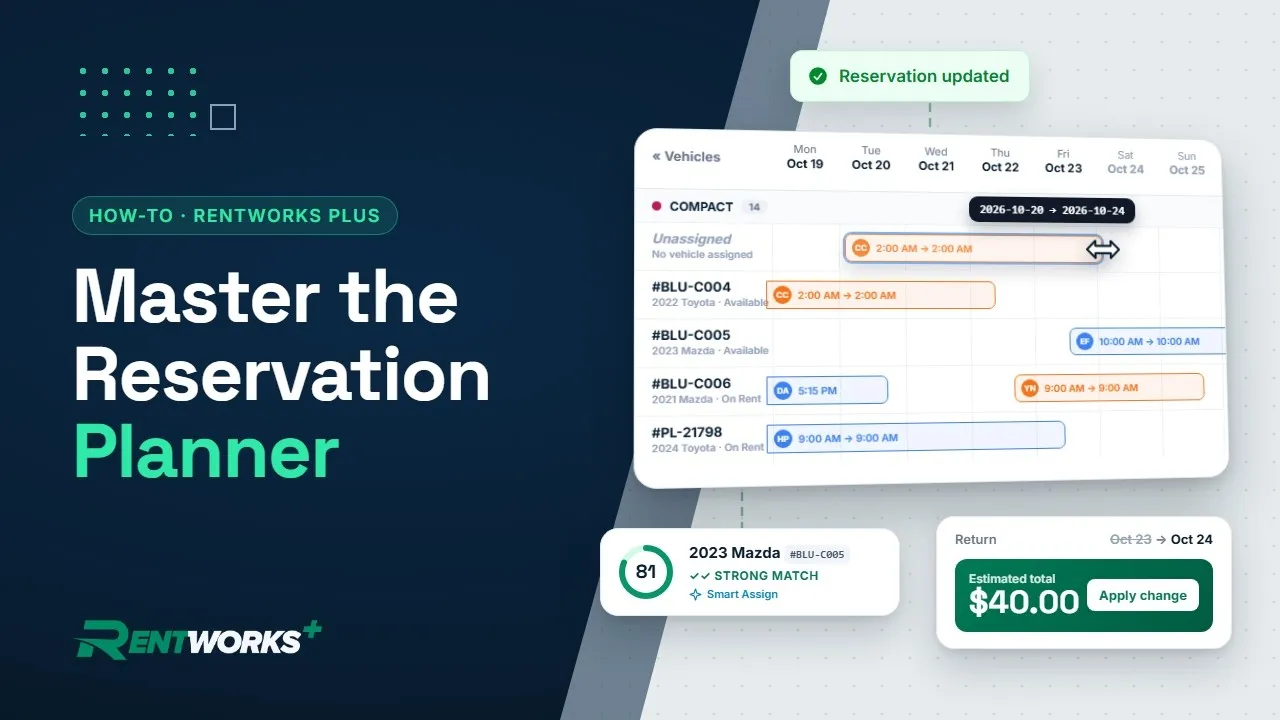
    Read the timeline, filter the fleet, change a return, assign cars by hand or with Smart Assign, and book from the grid.

    Watch
  2. 02
    How to Create a Car Rental Reservation in 15 Clicks video thumbnail 1:48

    Create a Reservation

    Dates, vehicle class, renter, rate plan and add-ons, from the first click to one saved electronic record.

    Now watching
  3. 03
    How to Check Out a Rental in RentWorks Plus video thumbnail 1:37

    Check Out a Rental

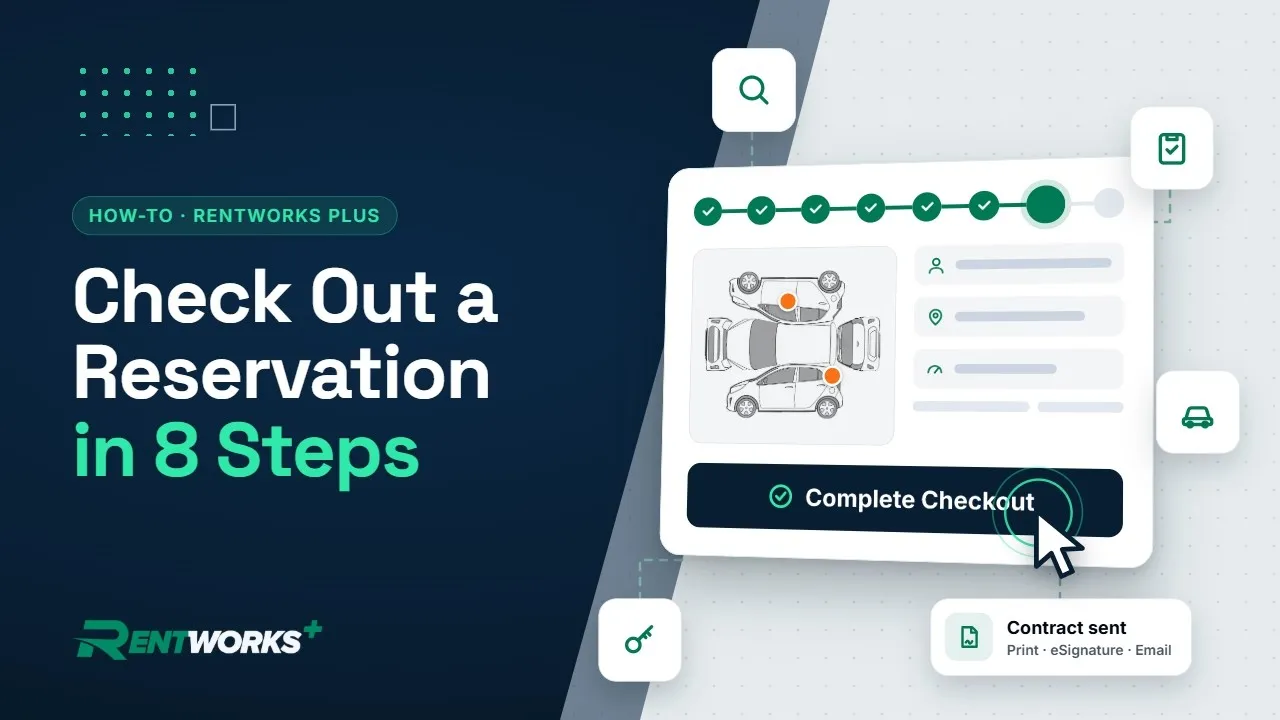
    Find the reservation, log odometer, fuel and damage, add extras and send the contract for e-signature, all on one page.

    Watch
  4. 04
    How to Check In a Rental Car in RentWorks Plus (Step-by-Step) video thumbnail 1:40

    Check In a Rental

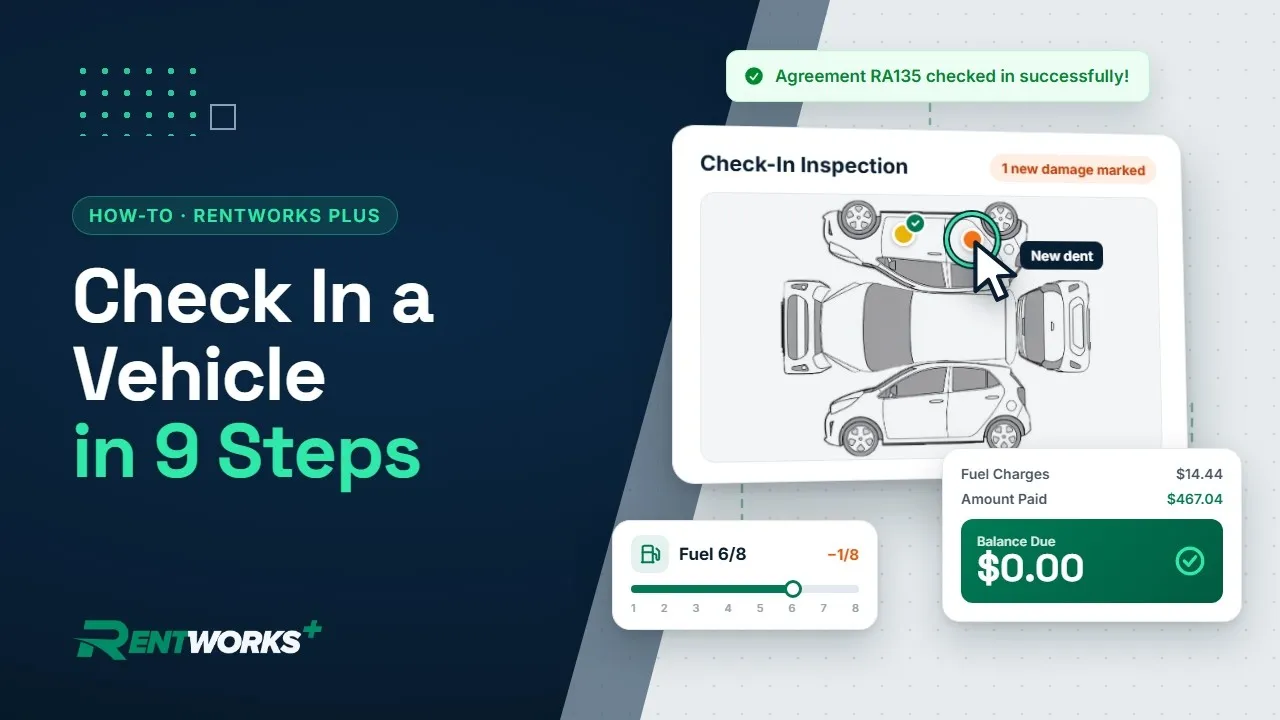
    Confirm the return, record odometer and fuel, spot new damage, take payment and close the contract.

    Watch