In this tutorial
- 0:00Intro
- 0:09Find the open contract
- 0:24Return details, odometer and fuel
- 0:48Damage inspection
- 1:05Summary and payment
- 1:21Complete check-in and share the contract
Step by step
- 1Open Counter and select Check In to see every open contract.
- 2Search by RA number, renter name or unit, and select the rental.
- 3Confirm the return location, date and time. Rental days calculate automatically.
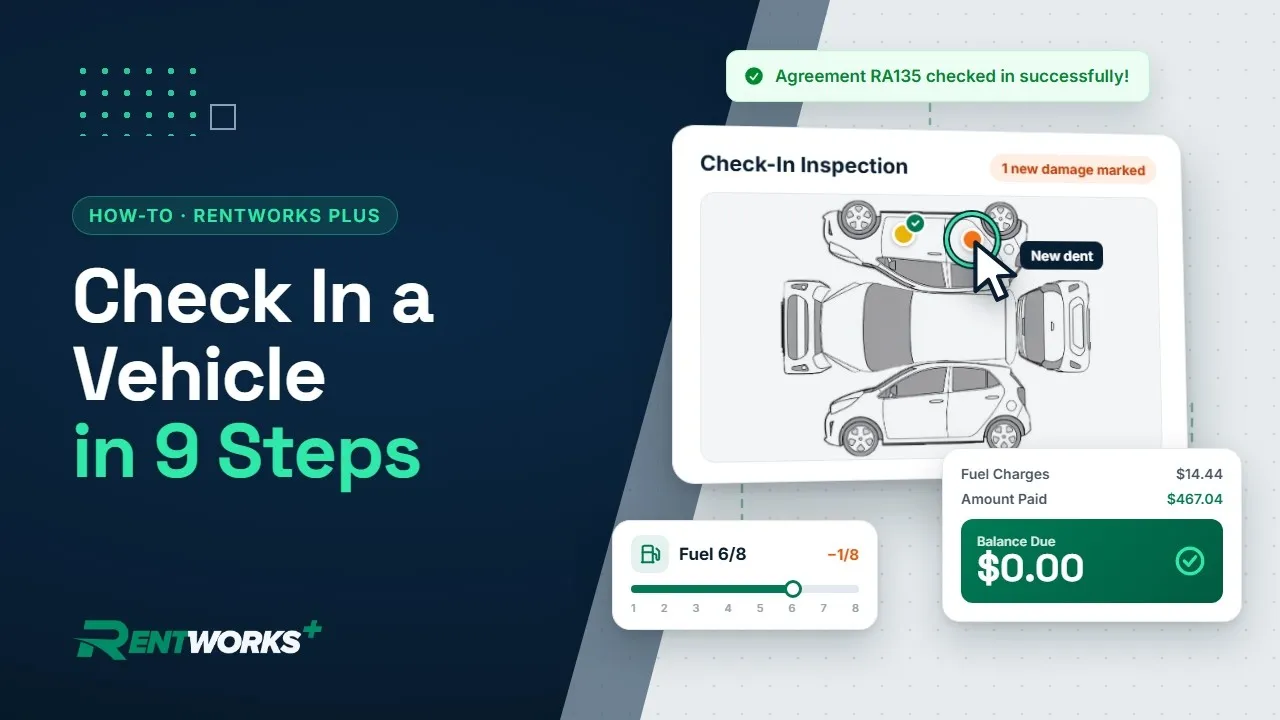
- 4Enter the odometer reading and fuel level. Fuel charges apply automatically.
- 5Click Start Check-In Inspection. Damage from checkout is already on the diagram, so mark anything new, add photos and save.
- 6Review the summary: time and mileage, extras, taxes and fuel.
- 7Click Add Payment, pick the payment type and pay to bring the balance to zero.
- 8Click Complete Check-In, then print, email or send the contract for e-signature.
Add-ons shown
- Telematics: pulls odometer and fuel readings in automatically.
- AI Inspection: automates the damage walkaround.
Go deeper: Counter operations · Inspections and claims
Video transcript
Welcome back! Let's check in a vehicle in RentWorks Plus. And just like checkout, it all happens on one page.
First things first. Open Counter, and select Check In. Every open contract is right here.
Now, let's find our rental. You can search by RA number, the renter's name, or the unit. We'll type "Carter", and there it is! Select it to open the check-in.
Start with the return. Confirm the Return Location, the date, and the time, and the number of days works itself out.
Next, the readings. Enter the odometer at check-in, then set the Fuel Level to what's in the tank. Came back a little low? The fuel charge is added for you. Or skip the manual reads. With our Telematics add-on, the odometer and fuel data flow in automatically.
Now, walk around the car, and click Start Check-In Inspection. The damage marked at checkout is already on the diagram, so anything new stands out. Here, it's a small dent. Mark it, add a photo, and click Save Changes. And with our AI Inspection add-on, you can automate all of this.
Okay! Take a look at the Summary. Time and mileage, extras, taxes, and fuel: it's all added up for you.
Time to settle up. Click Add Payment and pick the payment type. The amount's already filled in, so just click Pay, and the balance drops to zero.
Almost there. Click Complete Check-In, and just like that, the contract's closed.
Last step! Print the final contract, email it, or send it for e-signature, so your customer has a copy.
And that's it! The car's back, the contract's closed, and it's ready for its next rental.
The Core Rental Operations series
-
01
-
02
-
03
-
04