In this tutorial
- 0:00Checkout on one page
- 0:08Open Counter and find the reservation
- 0:23Confirm the vehicle, odometer and fuel
- 0:37Record existing damage with Inspection
- 1:03Set the rental reason and verify renter details
- 1:08Review the rate plan and add extras
- 1:15Complete Checkout and submit the contract
- 1:22Print or e-sign, then email the contract
Step by step
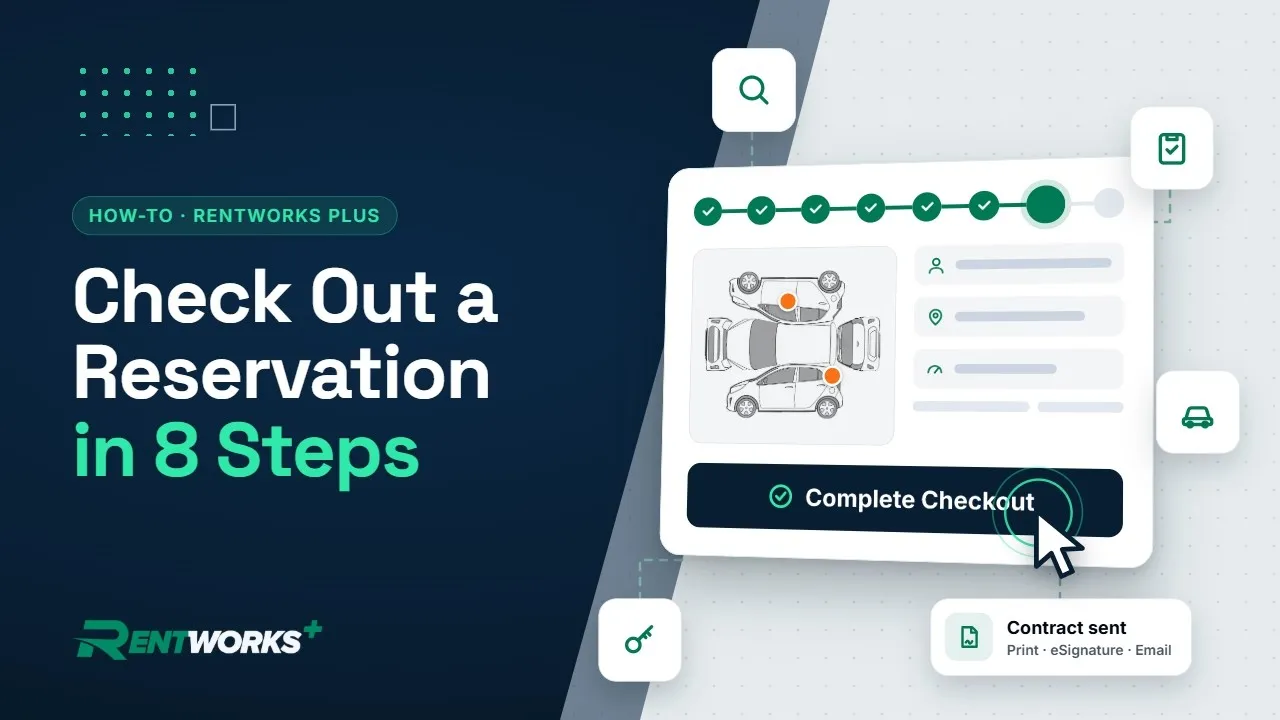
- 1Open Counter and select Checkout.
- 2Find the reservation by RA number, renter name or unit, and select it.
- 3Confirm the vehicle, enter the Odometer Out and set the Fuel Level Out.
- 4Click Inspection, mark any damage already on the car, add a photo, notify the renter by email or SMS, and click Save Changes.
- 5Set the Rental Reason and double-check the renter's details.
- 6Review the rate plan and add extras, such as a GPS, under Miscellaneous Charges.
- 7Click Complete Checkout, review the contract and click Submit Contract.
- 8Print the contract for a signature or send it for e-signature, then email or download a copy for the customer.
Add-ons shown
- Telematics: odometer and fuel readings flow in automatically.
- AI Inspection: automates damage capture and the email or SMS to the renter.
Go deeper: Counter operations · E-signature · Rental agreements
Video transcript
Hey there! Let's check out a reservation in RentWorks Plus. And the good news? It all happens on one page.
Alright, first things first. Open Counter, and select Checkout.
Now, let's find our reservation. You can search by RA number, the renter's name, or the unit. We'll type "Carter", and there it is! Select it to open the checkout.
Next up, the vehicle. Make sure it's the right car, then enter the Odometer Out, and set the Fuel Level Out to match what's in the tank. Or skip the manual reads. With our Telematics add-on, the odometer and fuel data flow in automatically.
Now, before the keys change hands, click Inspection. Mark any damage that's already on the car. Here, it's just a small scratch. Add a photo of it, and you can notify the renter by email or SMS. Then click Save Changes. That way, it's on record before the rental even starts. And with our AI Inspection add-on, you can automate all of this, including the email or SMS to the renter.
Okay! Set the Rental Reason, then take a second to double-check the renter's details.
Look over the rate plan. Customer wants a little something extra? Add it under Miscellaneous Charges. We'll throw in a GPS.
Almost there. When everything looks right, click Complete Checkout. Review the contract, and click Submit Contract.
Last step! You can print the contract for a physical signature, or send it for e-signature. Then email or download it, so your customer has a copy.
And that's it! The vehicle's checked out, and your customer's ready to hit the road.
The Core Rental Operations series
-
01
-
02
-
03
-
04